Recover RAID Volumes in Windows Storage Spaces: Parity, Striping, Mirror, Composite
What if your hardware RAID 5 is down (and it was built in Windows Storage Spaces on Windows Server 2019)? Have you reinstalled the operating system, and now one or several disks don’t work, or the whole disk array is inaccessible? In today’s article, we’ll tell you how to get it back to normal again and recover your data.
Contents
Windows Server features an integrated technology to let you create a hardware RAID system and protect your files from accidental loss. This function is used to keep your data intact in case one or several disks fail, depending on the array configuration. Unfortunately, issues related to data loss in Windows Server systems do not always boil down to a mere disk failure: other possible causes may include software errors, incorrect settings, damaged metadata, accidental formatting or removing files and so on. All these things may cause a loss of important information, and leave the poor user wondering how to extract or recover files from such a faulty array.
To have your data back, you have to use specialized data recovery software that supports this specific RAID type. Hetman RAID Recovery supports almost all known sorts of RAID systems, and it will help you recover any lost files without effort. It works perfectly with all popular file systems, fixing errors in the logical structure of hard disks and displaying disk contents.
Reinstalling Windows Server or Encountering a Hardware Error
Errors in the work of the operating system (like those you may encounter during the update process) can cause a critical error, which may leave your system stranded and unable to boot again. If that’s the case, the easiest way out is to reinstall your operating system. But what should you do with the RAID 5 system and all the information that is still inside it?
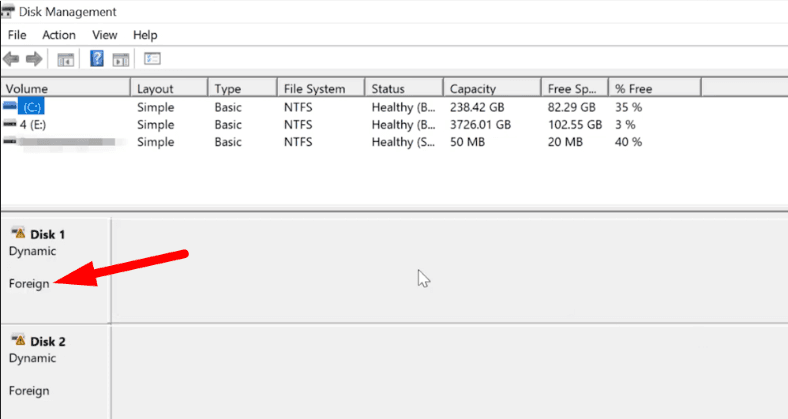
After the operating system is reinstalled, it may have issues in recognizing the disks, and display them in the Disk Management as foreign .